
Worth Reading – Microsoft Teams Audio‑Only Meeting Recording: How it Works and Why it Keeps Meetings Human
I’m glad we can now record only the audio. It makes it slightly less intrusive to record a meeting that others may need to listen to later.

I’m glad we can now record only the audio. It makes it slightly less intrusive to record a meeting that others may need to listen to later.
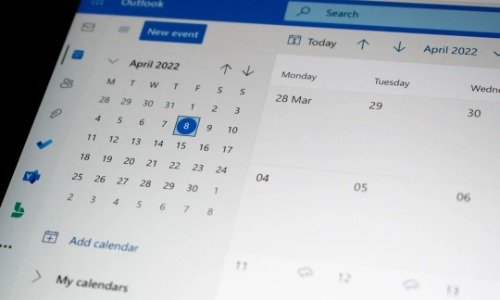
One of the biggest irritations for M365 users is recurring meetings set to run for years, with the organizer having left the organization. How do you get them off people’s calendars, or have them managed by another user?

The first paragraph makes it obvious that you can’t be an unnamed guest in a Zoom meeting and invite your AI to take notes. That makes sense.
The second adds a requirement: you must also attend the meeting. No more sending your AI to take notes for you while you spend your time elsewhere.
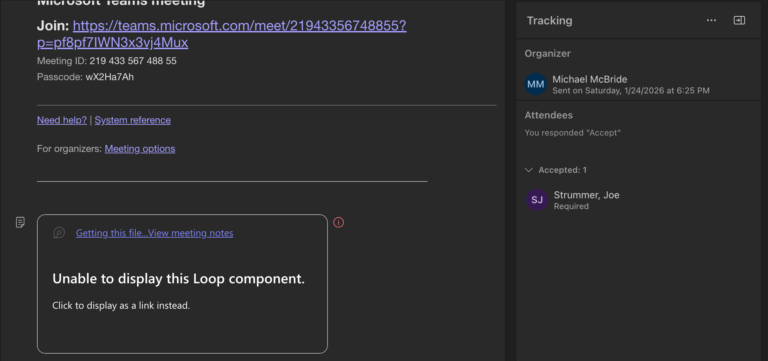
My best advice for recurring meetings is to skip creating an agenda in Loop. It simply doesn’t work unless you want a single agenda, and you never change it before the meeting.
This post will be updated throughout the month as new items are added to the tag.
Be sure to subscribe to my M365 Newsletter for more M365 expertise and news.

A few months ago, I wrote about people using AI Notetakers in Teams meetings. I’ve spoken several times about the privacy implications of recording Teams meetings, using Copilot, and related practices. One thing I’ve been encouraging people to understand is that, even if you host the meeting and turn off all AI, recording, and transcription…

If you’re meeting involves a screenshare or some kind of visual presentation, then video recordings make sense. That’s not every meeting, though. I can’t imagine many things being as boring as watching people talk in a meeting after the fact.

This post will be updated throughout the month as new items are added to the tag.
Be sure to subscribe to my M365 Newsletter for more M365 expertise and news.

OneDrive retention presents several challenges due to the variety of items that reside there by default. Share a file in a Teams chat and collaborate on it? It’s in OneDrive. Upload a file for Copilot to summarize, which will be copied to OneDrive. Meeting recordings and notes? OneDrive. Items from your local desktop and documents folders? Likely synced to OneDrive.
Use OneNote to store notes that you want to keep as a historical record? Yeah, OneDrive.
How do you establish a single policy to cover the retention of all these different scenarios?

Be sure to subscribe to my M365 Newsletter for more M365 expertise and news.